
Instead of copying backlink updates into every client report, connect a verified placement ledger to HubSpot company records, then use the same ledger for your agency-branded report. This HubSpot backlink reporting workflow keeps client summaries current without treating your CRM as a backlink crawler or claiming that a published link caused a sale.
- HubSpot backlink reporting works best when a placement ledger feeds CRM summaries and white label reports.
- NO-BS Marketplace suits agencies buying guest posts; backlink verification and reporting need a separate workflow.
- Use a stable client identifier, approved placement records, and repeat-safe updates before automating delivery.
- Keep publisher verification, referral traffic, and revenue attribution separate in client reports.
Why this matters
A publication confirmation, a checked backlink, and a qualified lead describe different events. Mixing them produces reports that look precise but cannot explain what happened.
NO-BS Marketplace connects SEO professionals and agencies with publisher sites for guest posts, backlinks, sponsored content, and digital PR placements. NO-BS Marketplace is best for agencies purchasing link-building placements, not for replacing backlink monitoring with CRM records.
For your 2026 reporting setup, give each system a clear job: the ledger stores placement evidence, HubSpot stores client context, and the branded report presents approved results. That separation makes corrections easier and keeps supplier information out of client-facing exports.
Before you start
- Accounts and access: You need a HubSpot account with permission to edit company records and create the required properties, Google Sheets access, and a Zapier account supporting your chosen workflow. Confirm the required actions and permissions before building.
- Reporting materials: Prepare a placement ledger, a client-to-company mapping, and an agency-branded reporting template. For NO-BS Marketplace link-building orders, enter placement information from your order records; this guide does not require a direct marketplace integration.
- The gotcha: A row-update trigger can run again when someone edits an old placement. Store stable placement identifiers, separate delivery status from verification status, and update existing company summaries rather than incrementing totals on every trigger.
Use synthetic client data for the first test. Do not send a real client's report while you are still proving record matching and access controls.
Placement ledger configuration
Choose the record structure
Keep individual backlinks outside the company summary. A single company property cannot preserve the history of every placement, target URL, anchor change, and verification check.
These two record types serve different purposes:
| Record type | Best for | Strength | Limitation |
|---|---|---|---|
| Placement ledger | Placement-level evidence and branded report detail | Preserves publisher URLs, targets, anchors, and checks | Requires a maintained verification process |
| HubSpot company summary | Account managers checking client delivery status | Puts campaign context beside the client record | Does not independently verify backlinks or prove SEO impact |
This workflow uses both. Neither replaces the other.
Build the source and summary sheets
- Create a placement sheet with one row per placement. Add these agency-defined columns: Placement ID, Client ID, HubSpot Company ID, Publisher URL, Target URL, Anchor Text, Published Date, Verification Status, Last Checked, and Reporting Period.
- Add Client Report URL only when you have an approved report destination. Keep supplier notes and other internal details in separate columns excluded from client exports.
- Create a summary sheet with one row per client and reporting period. Include the company identifier, verified placement total, latest verification date, report URL, and an agency-defined Ready to Sync column.
- Calculate the verified total from distinct placement identifiers that meet your acceptance criteria. Do not count rows merely because a publisher supplied a URL.
- Use dates such as 2026-03-01 consistently. Document the reporting timezone and period boundaries before importing historical records.
Expected result: Every placement belongs to a known client, and every summary row contains a complete replacement value for the CRM—not an instruction to add another placement.
The data path is straightforward: approve placement evidence, calculate the client summary, match the company, update the CRM, and refresh the report.
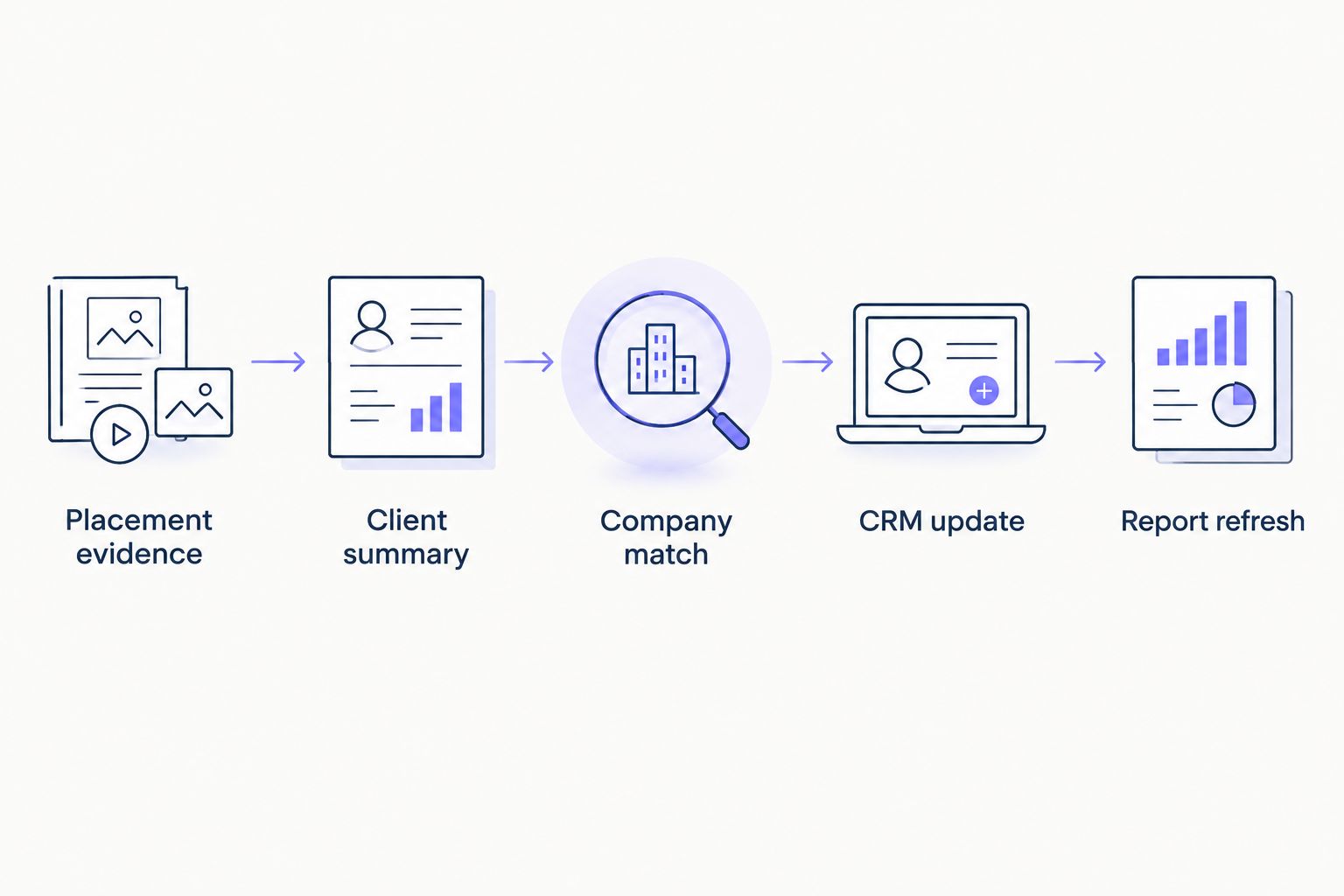
HubSpot property configuration
Create a small company-level schema
Use company properties for the summary, not contact properties. Contacts change roles; the client account remains the reporting destination.
- In HubSpot, open Settings, then Properties. Select the company object and choose Create property.
- Create these agency-defined property labels: Backlink Reporting Period, Verified Placement Total, Latest Link Check, and Client Backlink Report. Use text, number, date, and URL-compatible fields as appropriate to the available property types.
- Record the internal names generated for those properties. Use those names when inspecting integrations or troubleshooting mappings; a display label alone is not a reliable technical identifier.
- Copy the correct company record identifier into your mapping sheet. Confirm the destination by opening that company record before enabling automation.
- Decide whether the properties represent the current period or lifetime delivery. For this workflow, use the current period and keep historical snapshots in the reporting ledger.
Expected result: A test company can hold the reporting period, verified total, latest check date, and report destination without exposing placement-level supplier notes.
Do not rename an existing business property just to fit this workflow. Create a reporting-specific property when the existing field has a different meaning.
Set the reporting definitions
Write down what qualifies as verified. At minimum, check that the publisher page is reachable and contains the expected link to the intended destination; record the observed anchor and link attributes separately.
A reachable publisher page is not proof of Google indexing. A verified link is not proof of ranking improvement. Keep those distinctions in the property descriptions and your 2026 client report template.
Zapier trigger and company update
Connect the summary sheet
Zapier connects the approved summary to HubSpot. This is a connector workflow, not a claim that either platform automatically discovers or validates backlinks.
- Create a Zap. Select Google Sheets as the trigger app and New or Updated Spreadsheet Row as the trigger event.
- Connect the account with access to your summary spreadsheet. Select the spreadsheet and worksheet containing client summaries, not the raw placement sheet.
- If the trigger configuration offers a trigger-column selection, choose the approval column. Otherwise, add a filter before the HubSpot action so only rows marked ready continue.
- Test the trigger with a completed summary row. Inspect the company identifier, reporting period, numeric total, verification date, and report destination in the returned data.
- Reject incomplete rows before they reach HubSpot. A missing identifier must stop the update rather than send the record to an approximate company match.
Expected result: An approved summary produces a usable trigger payload; an unapproved or incomplete summary does not reach the update action.
Match and update the company
- Add HubSpot's Update Company action. Connect the intended HubSpot account and map the stored company record identifier to the action's company identifier input.
- Map the summary fields to the custom company properties. Use the calculated verified total as a replacement value, not an increment.
- Leave unrelated company properties unmapped. Decide explicitly whether an empty source value should clear a property or stop the update; test the connector's behavior before using blank values.
- Run the test action. Open the destination company in HubSpot and compare every mapped property with the source row.
- Repeat the test using 3 test rows: a valid company, a missing identifier, and the same valid company summary again. The repeated update must leave the total unchanged.
Expected result: The correct company receives the approved summary, an invalid identifier produces a controlled failure, and replaying a summary does not inflate delivery totals.
Avoid automatic company creation in this reporting workflow. A typo should create a review task, not another client record.
Release the branded report
The CRM sync does not automatically make the report white label. Your reporting template and delivery process control what the client sees.
- Populate the client-facing report from approved ledger fields. Include the reporting period, publisher page, target page, observed anchor, verification status, and last-check date.
- Apply your agency's reporting identity in the template. Exclude internal notes, credentials, supplier correspondence, and other clients' records.
- Test the report destination using the intended recipient's access level. An authenticated agency session is not a valid client-access test.
- Enable the Zap only after matching, replay handling, and report permissions pass. Assign an owner to review failed runs and stale verification dates.
Expected result: The client receives an agency-branded report whose details agree with the HubSpot summary.
Update reports when a backlink changes
New-placement reporting is only half the job. An existing publisher page can change after publication, so use the same ledger to handle verification updates.
- Recheck the placement through your monitoring process or manual review. Update the existing placement row rather than adding a replacement row for the same link.
- Record the new observation and last-check date. Keep first-publication history separate from current verification status.
- Recalculate the affected client summary. Approve the revised summary only after checking the changed placement.
- Let the existing Zap replace the company summary, then refresh the report through your established publishing process.
For a 2026 monthly report, distinguish delivered during the period from verified at the latest check. A link delivered in an earlier period can need attention now without becoming a newly delivered placement.
If the report is a static export, updating HubSpot does not update the file. Regenerate it or issue a corrected version; otherwise, the CRM and client copy will disagree.
Troubleshooting
The wrong company receives the summary
Stop the Zap and inspect the stored company identifier. Replace name-based matching with the confirmed record identifier, then check other rows using the same mapping method before restarting.
Company names are labels, not safe unique keys. Keep a separate mapping for clients with multiple brands or domains.
Verified totals increase after ordinary edits
The workflow is counting trigger events rather than distinct placements. Remove increment actions and map a freshly calculated total from the summary sheet.
Replay the same approved summary. The count must remain unchanged when the evidence has not changed.
A new property does not appear in Zapier
Confirm that the property belongs to the company object and that the connected user can access it. Refresh the action's fields or reconnect the account, then retest the mapping.
Check the internal property name before creating another field. Duplicate properties split reporting history.
The report loads for the agency but not the client
Test the destination outside your signed-in agency session. Correct recipient permissions without making a private client report publicly accessible merely to remove the login prompt.
Inspect the file itself, too. Removing a visible worksheet does not prove that internal information is absent from an exported workbook.
HubSpot and the PDF show different totals
Compare the reporting period, verification cutoff, and export timestamp. Regenerate a stale PDF from the approved ledger rather than manually changing its headline total.
A fixed monthly snapshot and a current-status CRM field answer different questions. Label both clearly.
Customize your workflow
Once delivery reporting is reliable, add outcome reporting separately. Referral visits, leads, and revenue require their own measurement definitions; a placement count is not an attribution model.
Use the guide to track which guest posts drive referral traffic before adding traffic claims to the client summary. Preserve the distinction between observed visits and revenue attributed under your chosen model.
For NO-BS Marketplace white label link-building campaigns, keep procurement records separate from client-facing evidence. That gives account managers enough context to answer delivery questions without publishing supplier correspondence.
For your next 2026 reporting cycle, add an exception queue for missing identifiers, inaccessible pages, changed destinations, and failed report delivery. Automate approved updates; give unresolved exceptions a named owner.
FAQ
How do I connect HubSpot to a white label backlink report?
Connect an approved placement summary to HubSpot company properties through an automation connector, then publish the detailed report from the same ledger. Use stable company identifiers and test repeated updates before enabling the workflow.
Does HubSpot automatically check whether backlinks are live?
This workflow does not use HubSpot to check live backlinks. Supply verification results from a separate monitoring process or manual review, then sync the approved summary.
Do I need a native NO-BS Marketplace integration?
No native NO-BS Marketplace integration is required for this workflow. Enter placement information into your ledger, verify it, and connect the approved summary to HubSpot.
Should I store every backlink on a HubSpot company record?
Keep placement-level evidence in the ledger and store summary information on the company record for this setup. A summary property does not preserve a complete placement history.
How do I prevent duplicate backlink totals in HubSpot?
Replace the CRM total with a calculated count of distinct approved placements instead of increasing it whenever a trigger runs. Replaying an unchanged summary should leave the total unchanged.
Can I report revenue from each guest post?
Only report attributed revenue when your measurement setup supports that claim. Publication, referral visits, contact creation, and closed revenue are separate events and should remain separate in the report.
Does connecting HubSpot make my report white label?
No, connecting HubSpot does not make the report white label. Your report template, exported fields, branding, and recipient permissions determine the client-facing result.
One last thing
A successful automation run proves that data moved—not that the backlink exists. Before releasing a report, open a sample publisher page and compare the observed link with the ledger and client summary.
Keep that evidence check outside the sync's success status. Otherwise, a perfectly functioning connection can distribute an incorrect report.