
Instead of manually copying backlink order emails into a tracker every day, set up Zapier backlink order automation that turns each labeled confirmation email into a spreadsheet row and alerts your team. For agencies buying placements through NO-BS Marketplace, this is an email-based tracking workflow, not a claimed direct Zapier integration with the platform.
- Zapier backlink order automation works by sending labeled Gmail order emails to Google Sheets, with an optional Slack alert.
- NO-BS Marketplace is best for SEO agencies that need to track purchased placements across client campaigns.
- Use an order identifier to match later status emails to the original row; do not create a new row for every update.
- Test with 2 different emails before publishing so unrelated messages do not enter the tracker.
Why this matters
An order confirmation is not the same as a live backlink. If both sit in an inbox without a shared tracker, an account manager can mistake a purchase for a published placement, miss a client reporting deadline, or report the same order twice. A row with separate fields for order status and live URL makes those differences visible.
The right 2026 setup tracks what an email actually says, not what you hope happened after it arrived. An order email can confirm an order. It cannot prove that an editor published the post or that a backlink remains live. Keep publication and link checks as separate steps in your campaign process.
This guide uses Gmail as the email source, Google Sheets as the order log, and Slack as an optional internal alert. You can complete the core workflow without Slack. NO-BS Marketplace is the placement source in the example; its description does not establish a native Zapier trigger, webhook, API, or fixed email format, so the instructions do not depend on any of those.
Before you start
- Get access to the receiving Gmail account, Zapier, and an editable Google Sheet. Use a mailbox that actually receives the order confirmations you want to track. If your agency uses a shared inbox, confirm that your Zapier connection can access that account.
- Collect a real order email and a real status-update email, if you have one. Check their sender, subject, and body before building a Gmail filter. Do not assume every placement type uses the same wording or that an order number always appears in the subject.
- Decide what identifies an order. A unique order identifier is the cleanest match key if your emails contain one. If they do not, choose a documented combination of fields you can verify manually. This is the gotcha: without a reliable match key, an update workflow can overwrite the wrong client row or create duplicates.
Create the sheet before opening Zapier. Add these column headers: Order ID, Client, Placement type, Order date, Publisher, Target URL, Status, Live URL, Source email, and Last checked. Leave unknown fields empty. A purchased placement should not acquire a live URL merely because the spreadsheet has a column for it.
Set up your order label
Start with an inbox rule that catches genuine order confirmations and leaves unrelated campaign mail alone. In 2026, the Gmail label is the boundary between a message you intend to track and one Zapier should ignore.
- In Gmail, open a real confirmation and inspect its sender and subject. Copy the terms that consistently identify an order confirmation. Do not build the filter from a publisher name if different publishers send different messages.
- Open Gmail search options. Enter the verified sender in From or a distinguishing phrase in Subject or Has the words. Run the search and review the matches before saving anything.
- Select Create filter, then Apply the label. Create a label such as Backlink orders and save the filter. Use a separate label for status updates; otherwise, both message types will feed the same new-order Zap.
- Apply the label to a test confirmation that you can inspect. Check that a non-order email remains unlabeled.
Expected result: the order confirmation has the Backlink orders label, and the unrelated message does not. If the filter matches client replies or editorial discussions, tighten it now. Cleaning a Gmail filter is easier than untangling incorrect sheet rows later.
Configure the Gmail trigger
The trigger starts with a message you can see in Gmail, not an assumed event inside NO-BS Marketplace. Keep that distinction clear when you explain the workflow to a client.
- In Zapier, create a Zap and choose Gmail as the trigger app.
- Select New Labeled Email as the trigger event. Connect the Gmail account that receives the order messages, then select Backlink orders as the label.
- Select Test trigger. Inspect the returned email before adding an action. Confirm that it is an order confirmation and that the fields you need appear in the available message data.
- If the sample is wrong, return to Gmail and refine the filter. If the sample is correct but contains no stable order identifier, plan a manual review field instead of pretending the automation can reliably match future updates.
Expected result: Zapier retrieves a labeled order email whose sender, subject, and content you recognize. A successful trigger test only proves that the email was found; it does not prove that Zapier has separated the order ID, client, publisher, and URLs correctly.
Map the order row
The Google Sheet is the working record. Give each fact its own column so an agency operator can correct one field without rewriting a long note. This matters especially for NO-BS Marketplace orders that span different clients or placement types.
- Add Google Sheets as the action app and choose Create Spreadsheet Row. Connect the Google account with edit access to the sheet.
- Select the spreadsheet and worksheet that contain your column headers. Zapier should display those headers as fields to map.
- Map Source email to a value that lets you find the original message, such as its subject. Map Order date from the email only if the date represents the order you intend to record. Otherwise, use the date your team confirms the order.
- Map Order ID, Client, Placement type, Publisher, and Target URL only where the trigger exposes a trustworthy value. A block of unstructured email text is not automatically a clean order ID. If a field needs human interpretation, leave it blank and mark the row for review.
- Set Status to a clear internal starting value such as Ordered. Leave Live URL blank. Test the action and inspect the resulting row in Google Sheets.
Expected result: 1 test email creates 1 order row. The row should distinguish facts copied from the message from facts your team still needs to confirm. Remove the test row before publishing if it is not a real order.
A 2026 tracker becomes less useful when every field is treated as mandatory. Publisher details and target URLs do not always arrive in the first message you choose as a trigger. Blank fields tell the operator what to check; guessed values hide the gap.
Configure a team alert
An alert is useful when the person placing an order is not the person updating the client report. It is optional: Google Sheets can remain your single order log without adding another notification channel.
- Add Slack as an action app and choose Send Channel Message. Connect the workspace and select the channel your link-building team already uses for order work.
- Write a short message using fields you confirmed in the Gmail test. Include the order identifier if available, the client if known, and the starting status. Keep unknown publisher or live-link fields out of the message.
- Test the action. Check that the message points the team back to the correct order record without presenting an order confirmation as a published backlink.
- Publish the Zap, then send or label another legitimate test email. Check the Gmail label, the new sheet row, and the Slack message in that order.
Expected result: 1 qualifying email produces 1 new row and, if enabled, 1 team alert. If you see more, inspect overlapping Gmail filters and duplicate Zaps before processing more orders.
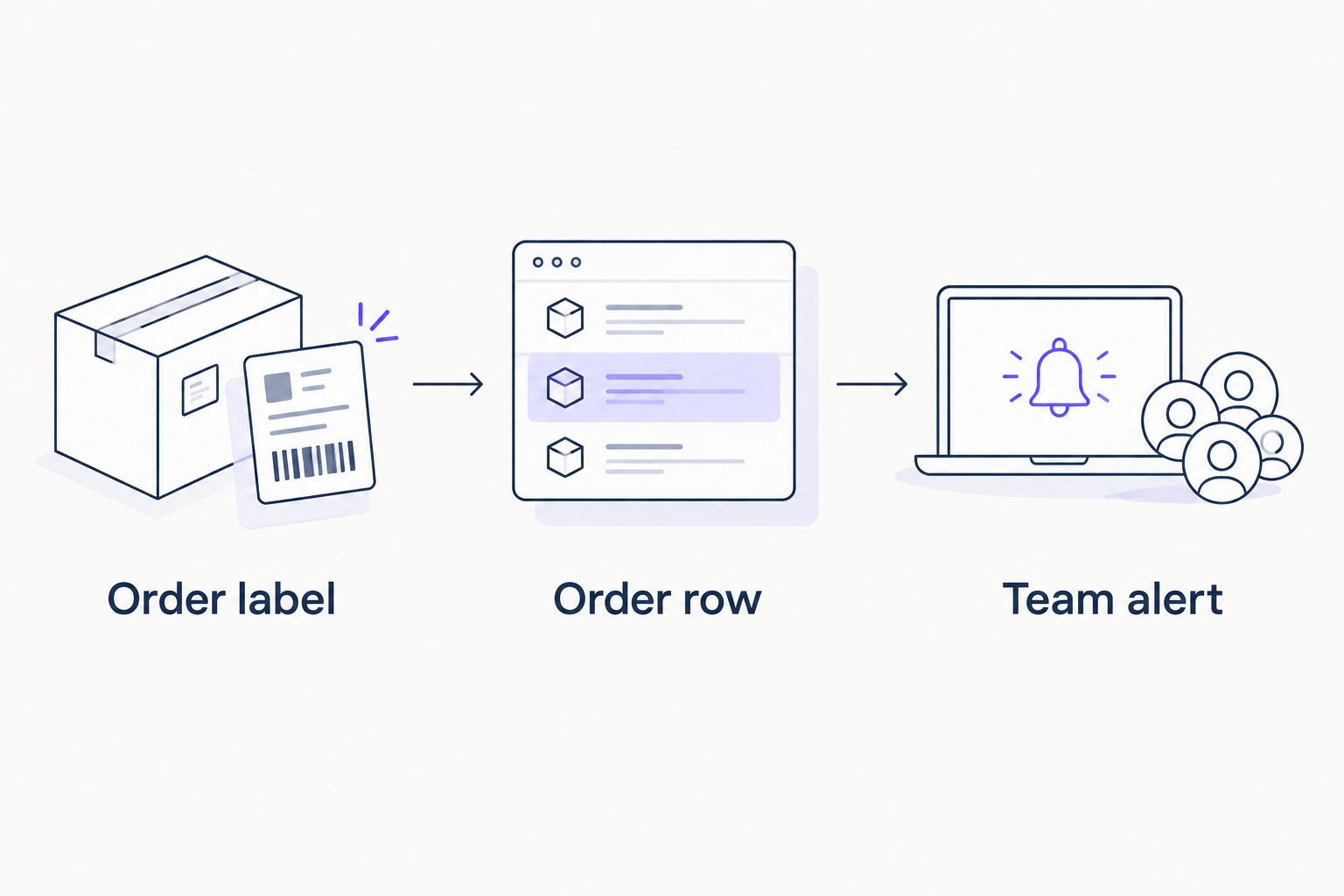
The process has three distinct parts: Order label, Order row, and Team alert. The label controls entry, the row holds the record, and the alert tells someone to review it.
Update a row when an order status changes
A separate update workflow makes sense when status emails contain the same reliable order identifier as the original confirmation. Do not use the new-order Zap for updates: Create Spreadsheet Row will add another record rather than change the existing one.
| Workflow | Best for | What it changes | Main limitation |
|---|---|---|---|
| New-order email | Recording a purchase | Creates an order row | Cannot verify publication |
| Status-update email | Recording a change to an existing order | Updates the matching row | Needs a reliable match key |
- In Gmail, create a separate label such as Backlink updates. Filter using wording observed in real update messages, then check that order confirmations do not receive this label.
- Create another Zap with Gmail and New Labeled Email. Select Backlink updates and test it against an actual status email.
- Add Google Sheets with Lookup Spreadsheet Row. Search the Order ID column using the identifier from the update email. Check that the lookup returns the intended client and order before continuing.
- Add Google Sheets with Update Spreadsheet Row. Use the row returned by the lookup. Map only the fields the update confirms: typically Status, Live URL when a URL is supplied, and Last checked when your team verifies it.
- Test with an update for an order already in the sheet. Confirm that the existing row changed and that no new order row appeared.
Expected result: a matched update changes 1 existing row. If a message has no usable identifier or the lookup finds no row, stop it for manual review rather than creating a replacement record. An unmatched email is a task to investigate, not evidence of a new purchase.
Troubleshooting
No email appears in the trigger test. Check that the connected Gmail account owns the message and that the exact label selected in Zapier is attached to it. Search the mailbox for the message first; changing spreadsheet settings will not fix a missing trigger sample.
Unrelated emails create rows. Review the Gmail filter results. A broad subject term can catch replies, publisher pitches, and status updates. Narrow the filter using wording you confirmed in actual order messages, then test with both an order and a non-order email.
The row contains an entire email body in one field. Google Sheets will store what you map; it will not turn unstructured text into verified order facts. Map individual trigger fields where they exist, or leave columns blank for review. Do not put a publisher name into Order ID because it looks distinctive.
A status email creates another order. Check which Gmail label the message received and which Zap handled it. Remove the new-order label from status messages, and keep Create Spreadsheet Row in the order Zap rather than the update Zap.
An update changes the wrong row. Inspect the lookup value and the Order ID column for blanks or duplicates. Pause the update Zap until each order has a unique, consistently recorded identifier. A successful Zap run does not mean the correct client record was changed.
Customize your workflow
Once the 2026 order log is stable, add fields that serve client reporting rather than fields that merely fill a sheet. Client approval, Editorial review, and Link verified can be separate internal checkpoints if your team actually performs them. Define who changes each status before adding more Zaps; automation cannot settle an unclear handoff.
For a white-label process, keep an internal operations sheet separate from the client-facing report. The internal sheet can retain the source email and unresolved questions. The client view should show only confirmed placement facts, with Ordered clearly separated from Published. NO-BS Marketplace can be one source of placements in that process without being presented as the owner of your agency's reporting workflow.
Do not mark a backlink live solely because an email says it was published. Open the page, check that the target URL is present, and record what you verified. For the measurement step after publication, use the guide to track guest-post referral traffic. An order tracker answers what was purchased and what has been checked; referral reporting answers a different question.
Review placement options
Keep the order log separate from publisher selection and placement checks.
FAQ
Can Zapier track NO-BS Marketplace backlink orders automatically?
Zapier can track order emails you receive from NO-BS Marketplace through a Gmail-to-Google-Sheets workflow. This guide does not assume a direct platform integration; the email must contain the information you intend to record.
What is the best trigger for Zapier backlink order automation?
Gmail's New Labeled Email trigger is a practical choice when order confirmations arrive in a Gmail account. Label only verified order emails so replies and status changes do not create extra rows.
Can an order confirmation prove that a backlink is live?
No. An order confirmation records a purchase, not a published link. Check the published page and target URL before changing an order's status to verified.
How do I stop duplicate backlink orders in Google Sheets?
Use a distinct Gmail label for new orders and keep update emails out of that trigger. Record a unique order identifier when one exists, and investigate duplicate rows before allowing an update Zap to run.
Can Zapier update an existing order instead of adding a row?
Yes, a separate workflow can look up an order row and update it when a status email contains a reliable match key. If no matching row is found, send the message for manual review rather than guessing.
Do I need Slack for this workflow?
No. Gmail and Google Sheets cover the core email-to-row workflow. Add Slack only when a team member needs an alert to review new orders.
What should an agency put in a backlink order tracker?
Record the order identifier, client, placement type, order date, status, and source email when those facts are available. Keep the live URL blank until a published page has been checked.
One last thing
The most useful field in a 2026 backlink order tracker is often Source email, not Live URL. When a client questions a status, the original message gives your team a record to inspect; an unverified URL gives them another assumption. NO-BS Marketplace orders deserve the same distinction as any other agency placement: ordered, reported as published, and independently checked are different states.