
Instead of copying completed backlink orders into QuickBooks, build a workflow that checks each closed order, matches the client, and creates an invoice with a saved billing reference. This quickbooks backlink order invoicing guide uses Google Sheets, Zapier, and QuickBooks Online, with duplicate checks before you turn on automatic processing.
- QuickBooks backlink order invoicing should start from an approved billing status, not every order update.
- NO-BS Marketplace serves SEO professionals and agencies buying link building and guest posting placements.
- Use Zapier to connect an order register to QuickBooks Online; verify your account supports the required actions.
- Save the QuickBooks invoice ID against the order before treating billing as complete.
- Creating an invoice does not send it, collect payment, or prove a backlink meets your acceptance criteria.
Why this matters
A completed placement and a billable client order are different events. Your team can mark delivery complete while client acceptance, replacement work, or billing approval remains outstanding.
Trigger invoicing from billing approval, not publication alone. For your 2026 workflow, define that boundary before connecting anything.
NO-BS Marketplace is a link building platform best for SEO professionals and agencies buying publisher placements. Keep supplier fulfillment records separate from your agency’s client receivables; this guide connects your own order register to accounting rather than assuming a native marketplace integration.
Before you start
- Accounts and permissions: Have access to your order register, Zapier, and the correct QuickBooks Online company. Confirm that your accounts support the trigger, invoice action, and multi-step workflow before building.
- Billing records: Prepare the QuickBooks customer mapping, service item, approved client billing amount, currency, payment terms, and tax treatment. Get accounting approval for those mappings.
- The gotcha: An updated row can trigger again after the workflow writes back its invoice ID. Require both billing approval and an empty invoice ID, and provide a recovery check for failures after invoice creation.
Use Google Sheets as the agency-owned handoff register in this example. It does not depend on a publisher platform providing an API, webhook, or export. Populate the register through whatever documented process your team already supports.
The spreadsheet column names below are labels you create, not built-in marketplace fields. The bold Zapier event and action names identify the controls used in this setup.
Order register configuration
Define the billing record
- Create a spreadsheet tab for billable client orders. Use a permanent order identifier rather than a row number, because sorting and inserting rows changes row positions.
- Add columns named Order ID, Billing status, QuickBooks customer ID, Billing email, Service item, Quantity, Approved amount, Currency, Completion date, Invoice ID, Billing result, and Billed at.
- Define Ready to invoice as your own billing status. Apply it only after the contracted delivery milestone and internal billing checks are complete.
- Keep publisher costs in separate internal records. Map the approved client billing amount into the invoice, not the supplier payment.
- Protect the customer mapping and billing columns from casual edits. Assign responsibility for approving changes and resolving failed orders.
Expected result: Each billable record identifies the client, the work, and the approved charge without requiring the automation to infer anything from a campaign name.
For the initial setup, use 1 order per invoice and a single service line with quantity 1. This is a workflow design choice, not a requirement of QuickBooks. It makes the order-to-invoice relationship easier to inspect while you establish the process.
If an order contains several separately billable placements, define that structure before building line items. Do not turn a list of publisher URLs into invoice lines without checking the contract.
Choose the billing pattern
Use this comparison when setting up your 2026 billing rules. Neither pattern changes the need for customer matching or duplicate protection.
| Billing pattern | Best for | Advantage | Limitation |
|---|---|---|---|
| Invoice each approved order | Agencies billing against individual deliverables | Direct order-to-invoice reconciliation | Produces separate invoices for separate orders |
| Consolidate approved orders | Agencies billing clients by an agreed period | Groups accepted work into one client invoice | Requires grouping, a cutoff, and line-level duplicate tracking |
Start with order-level invoicing unless your client agreement requires consolidation. A simpler trigger cannot fix the wrong billing model.
Closure trigger configuration
Connect the register and filter eligible orders
- Create a Zap in Zapier and select Google Sheets as the trigger app.
- Choose New or Updated Spreadsheet Row, connect the relevant Google account, and select your spreadsheet and worksheet.
- Load a sample row containing a complete, approved billing record. Use a clearly labeled internal test order for your 2026 setup.
- Add Filter by Zapier. Require Billing status to match Ready to invoice and Invoice ID to be empty.
- Add checks for the order identifier, customer mapping, service item, currency, and approved amount. Route incomplete records for correction rather than substituting defaults.
- Review the sample data entering the next step. Confirm that it contains the approved client record rather than another row from the same campaign.
Expected result: An unapproved order stops at the filter. An approved, unbilled order reaches customer matching.
The eligibility check is deliberately stricter than “order closed.” A reopened order, a replacement placement, or an internal note should not automatically become a new client charge.
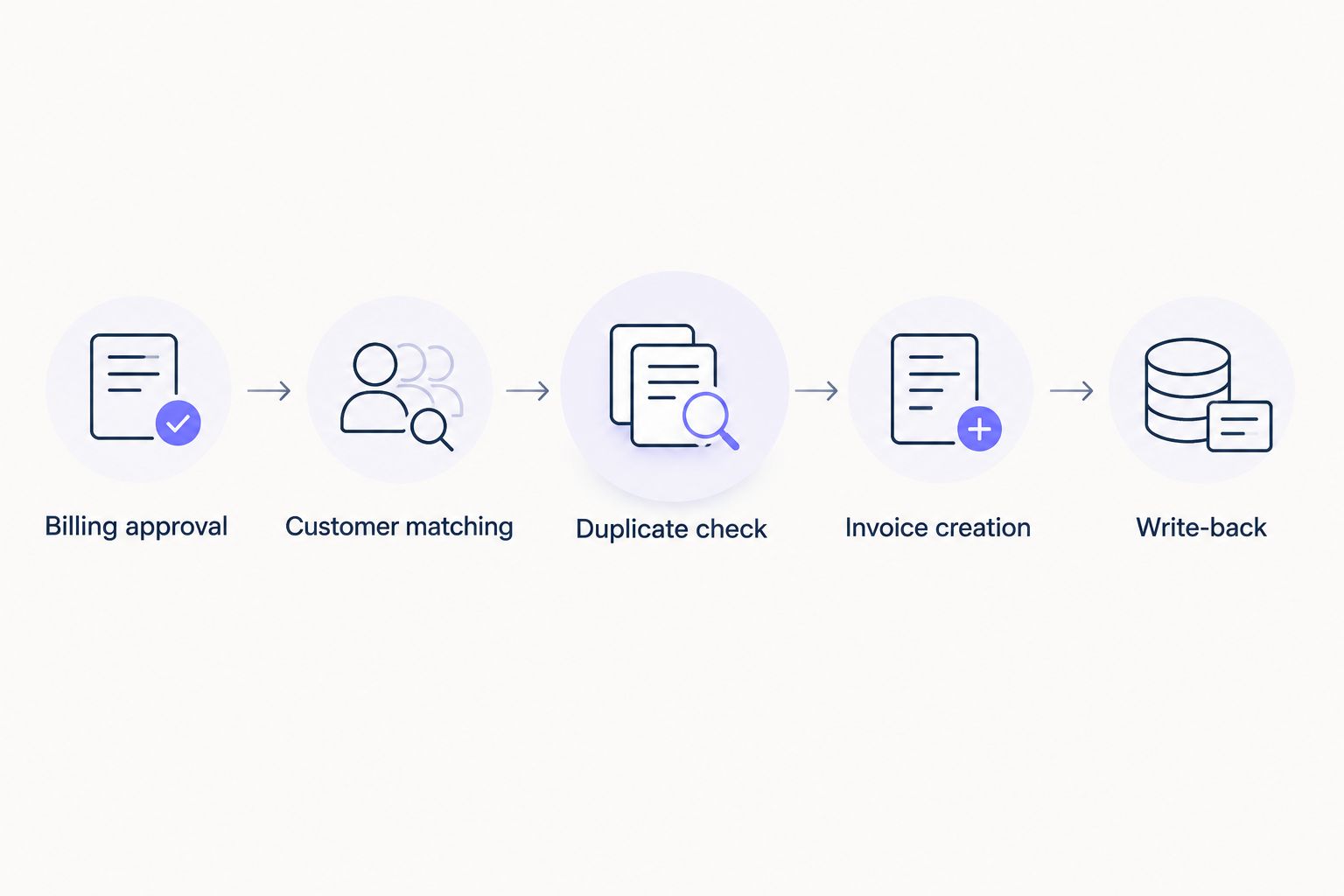
Separate delivery from billing
Use delivery evidence to support approval, not to bypass it. Your billing owner should be able to identify the accepted placement, contracted milestone, and client account from the order record.
For white-label work, keep internal sourcing notes out of client-facing descriptions. NO-BS Marketplace offers white label link building and guest posting services; your agency still needs its own rules for what appears on its client invoices.
QuickBooks customer and invoice configuration
Match the customer before creating the invoice
- Add a QuickBooks Online action and connect the company that issues your agency’s invoices.
- Use Find Customer to locate an existing customer using the supported lookup field. Compare the returned customer ID with the approved mapping in your register.
- Stop the workflow when the customer is missing or the mapping is inconsistent. Do not automatically create a customer from an unverified agency name or email address.
- Check the currency and applicable billing details against the customer record. Resolve discrepancies before invoice creation.
- Add a duplicate-recovery check using your permanent order reference. Use a supported invoice lookup or a separate billing ledger; do not assume every connector exposes a searchable custom reference.
Expected result: The workflow has a verified QuickBooks customer and no existing invoice associated with the order.
A customer ID is safer than treating a company name as a unique identifier. Two records can have similar names, and an agency contact can manage several client entities.
The duplicate-recovery check matters when QuickBooks creates an invoice but the spreadsheet update fails. A blank spreadsheet cell does not prove that accounting has no invoice.
Map the invoice fields
- Add the QuickBooks Online Create Invoice action.
- Map the verified record into Customer. Map the approved service item into the invoice line item.
- Map quantity and the approved billing amount according to the action’s field definitions. Check whether an amount field represents a unit amount or a line total before testing.
- Include the permanent order reference in an appropriate reference or description field supported by the action. Use a client-safe description of the accepted work.
- Apply approved invoice dates, payment terms, and tax settings. Keep these explicit rather than assuming every client uses the same treatment.
- Test the action and inspect the resulting invoice in QuickBooks Online. Check the customer, currency, line description, quantity, tax treatment, and total against the source record.
Expected result: QuickBooks contains an invoice for the intended customer and approved work, with a traceable order reference.
Creating an invoice is not the same as emailing it or charging a payment method. If automatic delivery is required, add a separately supported sending action after validation. Do not treat successful creation as proof that the client received anything.
For your 2026 rollout, keep invoice delivery under accounting review until the mappings pass your acceptance tests.
Invoice write-back and release configuration
Save the result and test reprocessing
- Add a Google Sheets Update Spreadsheet Row action using the row identifier supplied by the original trigger.
- Write the returned QuickBooks invoice ID into Invoice ID. Set Billing result to Created and record the processing timestamp in Billed at.
- Send failures to the person responsible for billing, including the order ID and the failed step. Keep internal diagnostics out of client communications.
- Run 3 test orders: an approved order, an unapproved order, and an order that already has an invoice ID. Only the approved, unbilled order should create an invoice.
- Process the successful test record through 2 runs. Confirm that the second run stops without creating another invoice.
- Test recovery from a failed write-back. Locate the existing invoice by its order reference and restore its ID before allowing further processing.
Expected result: The register points to the accounting record, and normal reprocessing does not create a second invoice.
A spreadsheet filter is not an atomic duplicate lock. Two overlapping executions can read the same empty cell before either writes its result.
Prevent overlapping processing for the same order. If concurrent events are possible, use a processing service or ledger that enforces a unique order key before invoice creation. Do not describe a read-then-write spreadsheet workflow as guaranteed exactly-once billing.
Record these acceptance results with your 2026 operating procedure. Repeat the tests whenever you change customer matching, invoice mapping, or retry behavior.
Variant: consolidate approved orders into one client invoice
For periodic billing, replace immediate invoice creation with a scheduled collection of approved, unbilled records. Keep the same customer validation and recovery controls.
- Define the billing cutoff and collect eligible records for that period.
- Group records by QuickBooks customer ID and compatible currency and billing treatment.
- Create an invoice with an identifiable line for each included order, using a connector or implementation that supports the required line items.
- Save the returned invoice ID against every included order.
- Reconcile the included order list before delivering the invoice.
Expected result: Each order belongs to a documented invoice batch, and later edits do not silently rebill that work.
Do not use arbitrary order updates to modify already issued invoices. Route corrections through accounting’s approved adjustment process. For partially delivered orders, invoice only the milestone or line items authorized by the client agreement.
Troubleshooting
The workflow creates duplicate invoices
Check whether write-back failed, whether the order ID changed, or whether executions overlapped. Pause processing, reconcile the existing QuickBooks records, and repair the duplicate check before retrying.
The invoice belongs to the wrong client
Inspect the customer lookup output and saved customer ID. Correct the mapping and handle the accounting correction before replaying the order; changing the spreadsheet alone does not repair an existing invoice.
The invoice total is wrong
Compare quantity, unit amount, line total, and tax treatment. Correct the field mapping and retest with accounting approval rather than adding an unexplained adjustment to force a match.
Every spreadsheet update starts another run
Check that the filter requires both Ready to invoice and an empty Invoice ID. Write-back can generate another update event; the next run must stop at eligibility checking.
QuickBooks has an invoice, but the register says failed
Treat this as a recovery case, not permission to create again. Find the invoice using the order reference, verify its contents, and restore the saved invoice ID.
Customize your workflow
Separate fulfillment monitoring, billing approval, invoice creation, and payment reconciliation. Each event answers a different operational question.
Extend the delivery side with this guide to automating backlink order tracking with Zapier. Keep the billing boundary intact: a delivery notification should not become billing approval by accident.
NO-BS Marketplace connects agencies with verified publisher sites for placement purchasing. Keep your client accounting rules in your own billing process rather than assuming supplier order statuses express your client contract.
FAQ
How do I automate QuickBooks backlink order invoicing?
Connect an approved order register to QuickBooks Online through an automation service such as Zapier. Validate the customer and billing details, check for an existing invoice, create the invoice, and save its ID against the order.
Does this workflow require a native NO-BS Marketplace integration?
No. This workflow uses an agency-owned Google Sheets register as its trigger source and does not assume a native marketplace integration or webhook.
Should a published backlink automatically trigger an invoice?
Only if publication satisfies your agreed billing milestone and approval rules. Otherwise, require a separate billing approval status before creating the invoice.
Does creating a QuickBooks invoice automatically charge the client?
No. Invoice creation records a receivable; sending the invoice and collecting payment are separate actions that require their own supported setup and authorization.
How do I stop the same backlink order being invoiced twice?
Use a permanent order ID, check for an existing invoice, and save the returned invoice ID. Prevent overlapping processing and reconcile ambiguous failures before retrying.
Can I put several backlink orders on one invoice?
Yes, with a consolidation workflow that groups approved orders for the same customer and compatible billing treatment. Save the resulting invoice ID against every included order.
What should happen if an invoiced placement needs replacing?
Route the order to an exception review rather than creating another invoice automatically. Apply the client agreement and your accounting correction process before making any billing change.
One last thing
Test the failure after invoice creation, not just the successful path. The dangerous case is an invoice that exists while your order register still looks unbilled. Recovery from that state is the difference between a useful automation and a duplicate-billing problem.