
Instead of manually checking order sheets and chasing publication emails, build an Airtable backlink order tracker that alerts your account manager when a placement passes review and records the notification against the original order. This 2026 workflow uses Airtable’s native automations; you enter publisher updates yourself unless you separately connect a documented data source.
- Build your Airtable backlink order tracker around a permanent order ID, publication evidence, and a human approval gate.
- Airtable automations handle delivery notifications; they do not independently verify backlinks or retrieve publisher order updates.
- NO-BS Marketplace serves SEO professionals and agencies sourcing guest posting and link-building placements.
- Keep publication, quality review, and notification status separate so incomplete placements never become finished orders.
Why this matters
A publisher saying an article is live is not the same as your team checking the link. Your tracker needs to preserve that distinction before it sends anything to an account manager or client.
If you source placements through NO-BS Marketplace, record the supplied order reference alongside your internal order ID. Treat the marketplace as the placement source and Airtable as your operational record—not as a confirmed direct integration.
NO-BS Marketplace is best for SEO professionals and agencies sourcing guest posting and link-building placements. Airtable handles the tracking workflow described here, not publisher selection or fulfillment.
For your 2026 setup, automate the handoff after approval, not the judgment that a placement deserves approval. A completed automation proves that a workflow ran; it does not prove indexing, ranking improvement, or link quality.
Before you start
- Access: Use an Airtable base where you can create fields and automations. Confirm that your account supports the automation actions, recipient types, and run allowance required before building email delivery.
- Materials: Gather order references, client identifiers, target URLs, approved anchors, publisher details, and an internal notification address. Keep supplier notes out of client-facing messages.
- Trigger gotcha: Airtable’s When record matches conditions trigger responds when a record enters the matching state. Existing matching records do not automatically become a historical notification queue when you enable the automation; test with a record that transitions after activation.
Use a test recipient throughout setup. Do not connect client email addresses until the message, permissions, and duplicate-prevention behavior have passed review.
Order records
Build the data structure before the automation. These are proposed field names for your base, not fields supplied by a publisher or marketplace.
Create the order table
- Create a table named Orders. Use one record per placement, rather than one record per invoice or campaign.
- Make the primary field Order ID, using Single line text. Assign a permanent internal reference and keep the supplier’s reference in a separate field.
- Add the fields below using the indicated Airtable field types.
- Enter a test order with an internal recipient and a real placement your team can inspect. Leave the notification checkbox clear.
| Field | Field type | What it records |
|---|---|---|
| Supplier order ID | Single line text | Reference supplied with the placement |
| Client | Single line text | Internal client identifier |
| Publisher | Single line text | Publisher name or domain |
| Target URL | URL | Intended backlink destination |
| Approved anchor | Single line text | Agreed link text |
| Order status | Single select | Ordered, In progress, Published, Cancelled |
| Live URL | URL | Published article containing the placement |
| QA status | Single select | Pending, Approved, Changes needed |
| Owner email | Internal person responsible for delivery | |
| Delivery notified | Checkbox | Whether the delivery email was sent |
| Notified at | Date | Timestamp of the notification action |
| Follow-up date | Date | Next date requiring attention |
| Review notes | Long text | Evidence and exceptions |
Enable time in Notified at. Keep Follow-up date date-only unless your team needs a timed deadline; this avoids unnecessary timezone complexity.
Expected result: You can identify the order, its publication evidence, its reviewer decision, and its notification state without reading an email thread.
Set the review rule
Approve a placement only after opening the article and checking the destination, anchor, surrounding context, and applicable link attributes. Record discrepancies in Review notes and set QA status to Changes needed.
For paid placements, record whether the link is appropriately qualified. Google identifies rel="sponsored" as the preferred attribute for paid links; nofollow is also acceptable. A tracking workflow does not make paid links intended to manipulate rankings compliant with Google’s spam policies.
For a practical 2026 operating rule, assign the first publication review within 1 business day of receiving the live URL. This is a suggested internal deadline, not a publisher commitment.
Publication trigger
The delivery automation should require evidence and approval together. A URL alone is not a completion signal.
Configure the matching conditions
- Open Automations in the base and create an automation named Approved placement notification.
- Choose When record matches conditions as the trigger and select Orders as the table.
- Require all these conditions: Order status is Published; Live URL is not empty; QA status is Approved; Owner email is not empty; Delivery notified is unchecked.
- Prepare a test record that matches those conditions, then use Test trigger to load its values.
- Inspect the test output. Confirm that the record ID and order details belong to the intended placement.
Expected result: The trigger finds an approved publication with a recipient and no completed delivery notification. A published record awaiting QA does not qualify.
Keep the approval boundary visible
Create a filtered view for published orders whose QA status is not Approved. Use it as the review queue, rather than approving records merely to remove them from an unfinished-orders view.
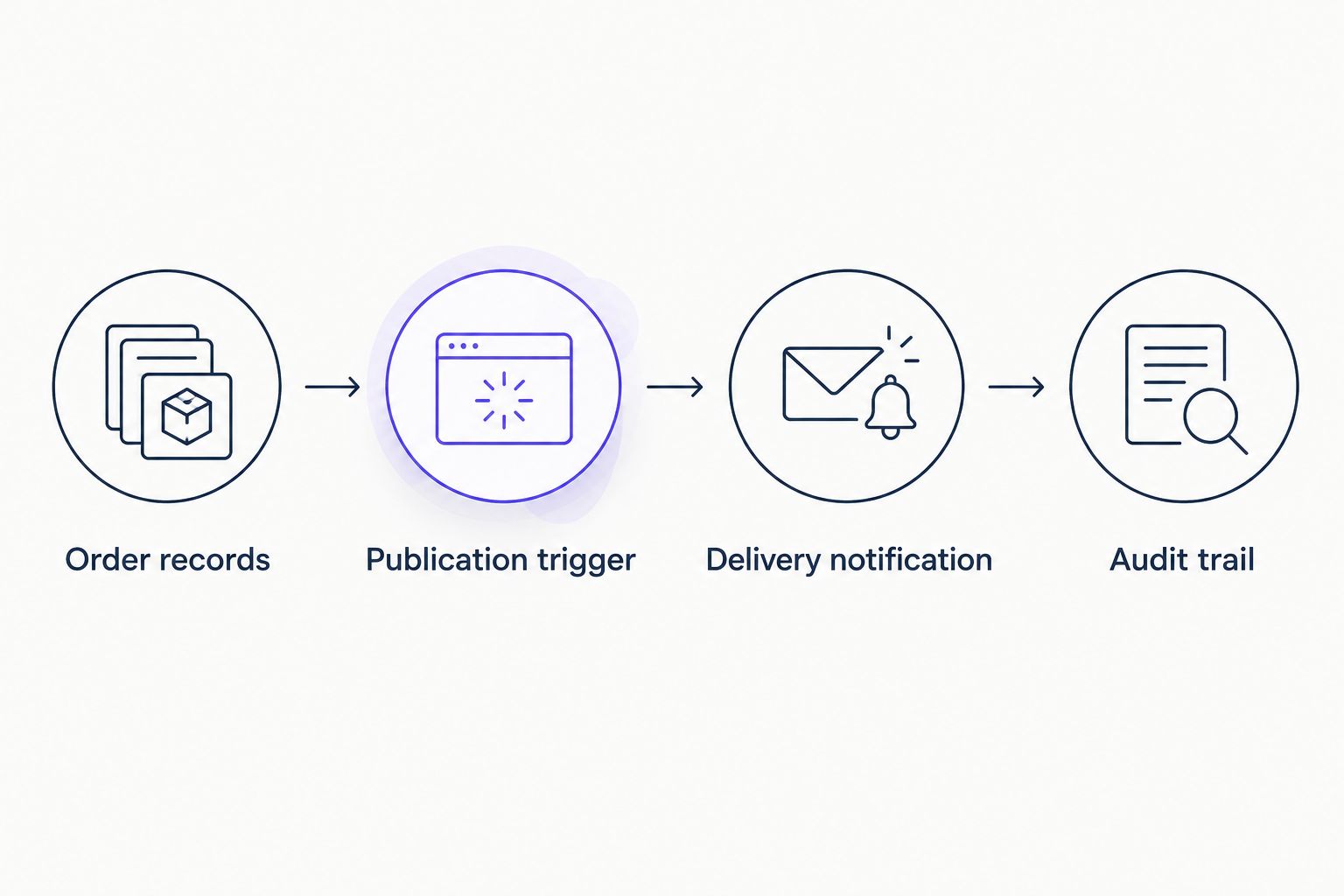
The workflow follows this sequence: Order records, Publication trigger, Delivery notification, Audit trail. Each stage answers a different question: what was ordered, whether it qualifies, who needs to know, and what happened.
Delivery notification
Use the trigger record as the source for every mapped value. Copying a test order’s details into the email creates a message that looks correct during setup but stays wrong in production.
Configure the email action
- Add the Send email action after the publication trigger.
- In To, insert the triggering record’s Owner email value. Do not type your test recipient as permanent configuration unless every order belongs to that person.
- In Subject, combine a short delivery label with the dynamic Order ID value.
- In Message, insert Client, Publisher, Live URL, Target URL, and Approved anchor from the trigger output.
- Test the action using an internal recipient. Open the received email and inspect every inserted value.
Keep the message factual: the placement is published and internally approved. Do not label it indexed, ranking, or generating referral traffic without separate evidence.
Expected result: Your internal owner receives the correct order reference and live article URL, with no supplier-only notes or unrelated client information.
Define the scope honestly
Native Airtable automation is useful when your team already maintains order records. Its limitation is equally clear: it acts on entered data and does not inspect the published page merely because a URL field is populated.
For NO-BS Marketplace link-building orders, copy the supplied placement details into the same structure used for other suppliers. This guide does not assume an API, webhook, or native marketplace connector.
Audit trail
The notification needs a durable completion marker. Otherwise, a later edit can put the same order back into the delivery queue.
Record the completed handoff
- Add Update record after Send email. Select Orders as the destination table.
- In Record ID, insert the Airtable record ID returned by the trigger. Do not use Order ID, the article URL, or a copied test record ID.
- Set Delivery notified to checked.
- Set Notified at using the automation’s dynamic actual run time value, rather than a typed date.
- Test the action, then enable the automation. Transition a fresh test record from Pending to Approved after satisfying the other conditions.
Expected result: The email arrives, the same order’s checkbox becomes checked, and its notification timestamp is populated. An unrelated order remains unchanged.
Test the failure boundary
Keep the email action before the completion update. Marking an order notified before attempting delivery can hide an unsent message.
This sequence is not an exactly-once delivery guarantee. If email succeeds but the record update fails, retrying the complete workflow can send another email; inspect automation history before replaying a failed run.
For your 2026 acceptance test, confirm that an unapproved placement sends nothing, an approved placement sends the correct message, and a notified placement stays excluded. Then test a missing recipient and a cancelled order.
Send follow-ups when orders become overdue
Delivery notifications handle completed work. A scheduled reminder handles the adjacent problem: unfinished orders that need attention even when nobody edits the record.
| Workflow | Best for | Advantage | Limitation |
|---|---|---|---|
| Publication notification | Approved placements ready for handoff | Reacts to a qualifying record change | Does not independently check the backlink |
| Scheduled overdue digest | Open orders needing follow-up | Checks a queue without requiring edits | Requires maintained follow-up dates and queue ownership |
Create a view named Follow-up due. Filter it to orders whose Follow-up date is today or earlier, excluding Published and Cancelled orders.
- Create a separate automation using At a scheduled time. Choose a daily schedule and confirm its timezone.
- Add Find records, selecting Orders and the Follow-up due view.
- Add Send email to your internal operations owner. Insert the found-record list with order references, publishers, and follow-up dates.
- Test with an overdue test record, a future-dated record, and a cancelled record. Only the overdue open order should appear.
- Test the empty-result case before activation so the reminder does not become a confusing blank email.
Expected result: The operations owner receives the due queue without changing individual order records to trigger it.
As a starting policy, set a new follow-up 7 days after an unanswered supplier update request. Adjust that interval to the agreed workflow; it is not a claim about normal publication time.
Keep this digest internal. Finding records across clients and sending the resulting list to one client recipient creates an avoidable disclosure risk.
Troubleshooting
An approved order never triggers
Check whether the record already matched before the automation was enabled. With a test record, move QA status out of Approved, then back after activation; do not bulk-toggle production orders to force a backfill.
Also inspect every condition. A missing Owner email or checked Delivery notified field deliberately blocks the trigger.
The wrong order gets updated
Replace the mapped value in Record ID with the trigger’s Airtable record ID. A supplier reference and Airtable record ID serve different purposes, even when both uniquely identify something in your process.
The same delivery email arrives twice
Inspect automation history before retrying. Look for an email action that succeeded followed by an update action that failed, duplicate automations, or a checkbox someone cleared.
Restore the completion marker only after confirming delivery. Do not erase history to make the queue look tidy.
The reminder misses an overdue order
Inspect the saved view filters, the record’s Follow-up date, and the schedule timezone. A blank follow-up date is not an overdue date; assign a deadline when creating or updating each open order.
The email action fails
Check the recipient value, action permissions, account restrictions, and automation allowance. Test with an allowed internal recipient before changing the order’s notification state.
A failed email should leave Delivery notified unchecked. Fix the cause before retrying.
Customize your workflow
Keep your 2026 tracker focused on operational facts before adding reporting. Publication date, QA approval, notification time, and later link checks answer different questions; avoid compressing them into one status.
Add Last checked and Link check result fields for post-publication reviews. A suggested first recheck is 30 days after approval, with later checks based on your campaign requirements—not an assumed placement lifespan.
If order updates arrive through another application, follow the guide to automate backlink order tracking with Zapier. Confirm the source’s documented access method and match updates to existing order IDs before allowing record creation.
Keep one authoritative delivery status. If another system also tracks fulfillment, decide which system owns that value and which merely receives it; uncontrolled two-way updates make exceptions harder to trace.
FAQ
What's the best way to build an Airtable backlink order tracker?
Use one record per placement, a permanent order ID, separate publication and QA statuses, and a notification checkbox. Trigger delivery messages only when the live URL exists and a reviewer approves the placement.
Can Airtable automatically check whether a backlink is live?
The workflow described here does not inspect backlinks automatically. A reviewer must check the page, or you must separately connect a documented checking service or script and handle its results.
Does this workflow connect directly to NO-BS Marketplace?
This workflow does not establish a direct connection to NO-BS Marketplace. Enter the supplied order references and placement updates manually unless you separately confirm and configure a supported integration method.
Why didn't my existing approved orders trigger an email?
Existing matching records do not automatically trigger a historical backfill when you enable the automation. Test with a record that enters the matching state after activation, and handle historical orders as a separate controlled task.
How do I stop duplicate backlink delivery notifications?
Require Delivery notified to be unchecked, then check it after the email action succeeds. Inspect failed runs before retrying because an email can succeed even when the following record update fails.
Can I send the overdue order digest directly to clients?
Keep the shared overdue digest internal unless its records are strictly scoped to the intended client. A cross-client found-record list must never be sent to an individual client.
Does a published backlink mean Google has indexed it?
No. Publication, backlink presence, and Google indexing are separate states, so track evidence for each rather than treating a live URL as proof of indexing.
One last thing
Do not clear the original notification checkbox when a published link changes. Preserve the delivery history and open a separate issue with its own owner, evidence, and resolution status.
That distinction keeps your 2026 tracker honest: a placement can have been delivered correctly and still need repair later. Your record should show both facts.