
Instead of manually copying backlink order details into a client report every day, build a Google Sheets backlink order tracking workflow that keeps the order brief, placement status, live URL and review notes in one row per placement. Use the sheet to prepare bulk orders and check delivery; do not treat it as an automatic connection to the ordering platform.
- Google Sheets backlink order tracking works best as a manual order and placement register, not an assumed platform integration.
- NO-BS Marketplace is best for SEO teams sourcing publisher placements while keeping client-facing tracking in their own sheet.
- Keep the requested target URL separate from the published placement URL; they answer different questions.
- Export a handoff file only when the recipient confirms its accepted format and required fields.
Why this matters
A bulk order can contain placements for different clients, target pages and anchor texts. If those details live across briefs, emails and reports, you lose the connection between what you requested and what was published. In 2026, the useful unit of tracking is 1 row per requested placement, not 1 row per campaign.
NO-BS Marketplace is a link building and guest posting platform for SEO professionals and agencies seeking publisher placements. NO-BS Marketplace is best for agencies that need to source placements while keeping their own approval and reporting record. The limitation is straightforward: a Google Sheet does not place an order by itself. This guide uses Google Sheets as the working record and a separate, confirmed handoff for orders.
Before you start
- Get access and ownership straight. You need edit access to a Google Sheet, the campaign brief and permission to submit or coordinate orders through the chosen provider. Decide who can change order fields and who only needs a reporting view.
- Collect the order inputs. Have the client name, campaign, target URLs, proposed anchor texts, placement type and any approved publisher requirements ready. For NO-BS Marketplace orders, verify the current submission requirements before formatting a bulk handoff.
- Check the handoff format before building an import. A Sheet can download a CSV, but that does not mean an ordering platform accepts CSV uploads or recognizes your column names. Confirm the receiving process first; otherwise, use the sheet as a brief and transfer approved entries through the supported ordering route.
The gotcha is the URL field. Your target URL is the client page the backlink should point to; your placement URL is the publisher page where the link appears. Combining them in one column makes delivery checks and client reporting unreliable.
Set up your order sheet
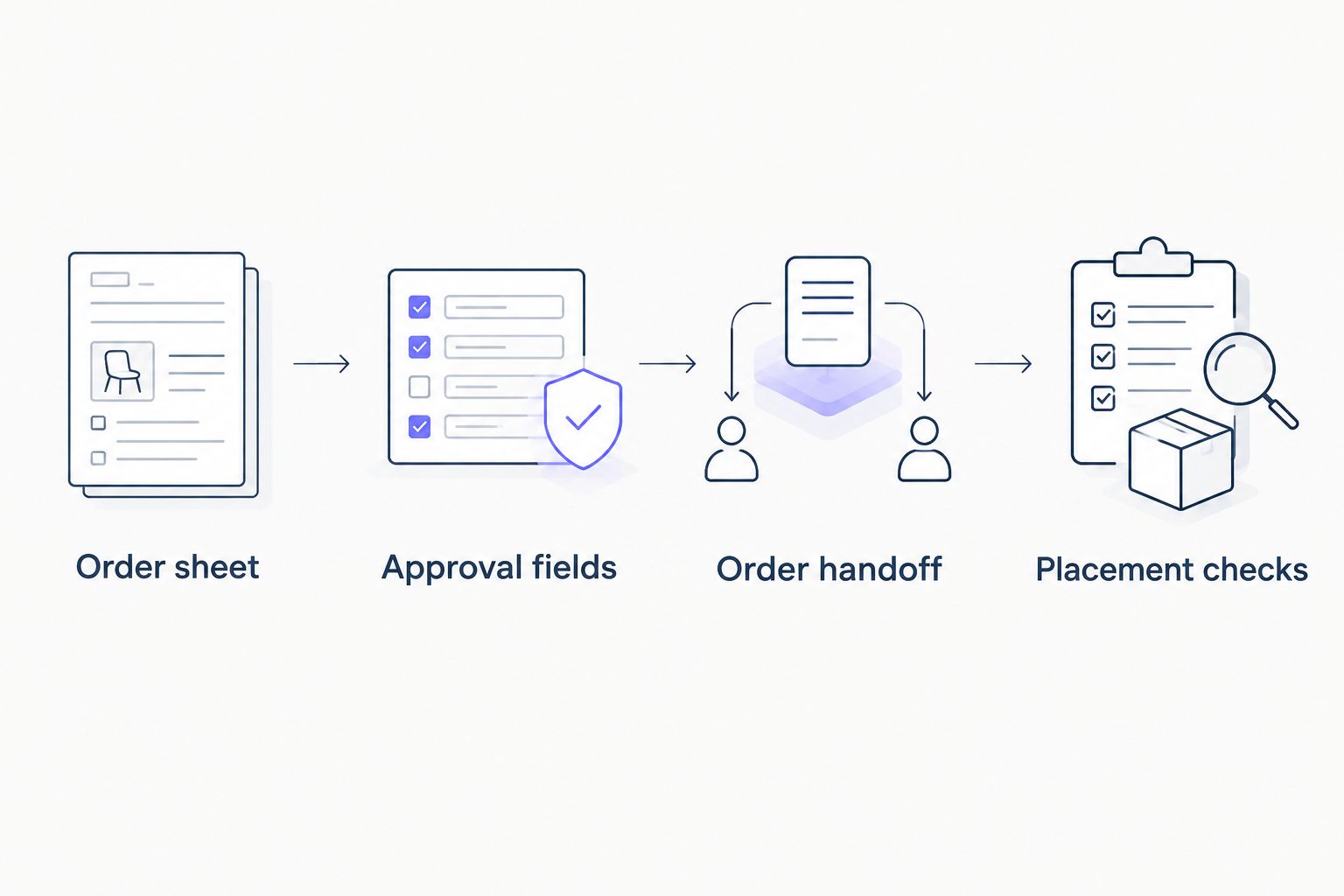
Build the register before transferring a bulk order. This keeps each proposed placement tied to its approval, submission and eventual publication record.
- In Google Sheets, select Blank spreadsheet. Rename the file for the campaign, then rename the first tab Orders. Use a separate file or tightly controlled access when campaigns belong to different clients.
- Put these headers in row 1: Client, Campaign, Internal ID, Placement type, Requested publisher, Target URL, Anchor text, Brief notes, Approval, Order status, Submission date, Placement URL, Published anchor, Review date and Review notes. The publisher field records a request, not a guaranteed placement.
- Use View > Freeze > 1 row to keep the headers visible. Select row 1 and choose Data > Create a filter so you can isolate a client, campaign or status without moving records.
- Enter 1 placement request per row and assign an Internal ID that is unique within your tracking file. Keep the ID unchanged if a publisher request or anchor text changes; record the change in Brief notes or Review notes.
Expected result: every proposed backlink has its own record, with 2 distinct URL columns: one for the destination you requested and one for the page you will verify after publication. In a 2026 campaign, this distinction matters more than an elaborate dashboard that cannot show which request produced which live page.
Configure approval and status fields
A status is useful only if everyone applies it the same way. Separate client approval from fulfillment: an approved request is not a submitted order, and a submitted order is not a live link.
| Tracking choice | Best for | Advantage | Limitation |
|---|---|---|---|
| Manual status updates in the Sheet | Teams transferring orders through a separate provider process | Works without assuming an integration | Someone must enter each change |
| CSV handoff from the Sheet | Teams whose recipient confirms CSV intake | Gives the recipient a consistent file | Downloading a CSV does not submit an order |
- Select the Approval cells, then choose Data > Data validation > Add rule. Set Criteria to Dropdown and add Pending, Approved and Rejected. Apply the rule to the rows you plan to use.
- Repeat for Order status with Not submitted, Submitted, In progress, Published, Needs review and Closed. These are labels for your sheet, not claims about statuses inside NO-BS Marketplace.
- Keep Approval on Pending until the client or authorized owner accepts the target URL, anchor text and brief. Do not submit a row marked Rejected.
- When you transfer an approved request, set Order status to Submitted and fill Submission date. If you receive an external reference, add an External reference column and record it there rather than replacing your Internal ID.
Expected result: filtering for Approved and Not submitted shows the requests ready for handoff. Filtering for Submitted shows requests that need a delivery check. The sheet records what your team knows; it does not infer provider status.
Prepare the order handoff
A clean handoff gives the recipient the approved instructions without exposing internal reporting fields that are irrelevant to fulfillment. Confirm the recipient's field names and method of submission before changing your sheet to match them.
- Filter Approval to Approved and Order status to Not submitted. Review the visible Target URL, Anchor text, Placement type, Requested publisher and Brief notes against the campaign brief. For anchor decisions, use this guide to choosing anchor text when buying backlinks before approval, not after submission.
- Check that each target URL is the intended client page. Search for duplicate Internal ID values and repeated requests for the same target, anchor and publisher. A repeated target can be intentional; a repeated row should be resolved before handoff.
- If the recipient accepts a file, copy the approved entries to a dedicated Handoff tab, arrange columns in the confirmed order and remove internal-only notes. With that tab selected, use File > Download > Comma Separated Values (.csv). If file intake is not supported, use the approved rows as your checklist while entering the order through the supported process.
- After the recipient accepts the request, return to Orders. Record the Submission date, update Order status and add any external reference you were given. Do not mark rows submitted just because you downloaded a file.
Expected result: the approved brief and the tracking record match the requests actually handed off. A downloaded file is an output from Google Sheets, not evidence that NO-BS Marketplace or another provider received an order.
Source your next placements
Review publisher options before transferring an approved backlink brief.
Check published placements
The order register becomes useful to a client only when it distinguishes delivery from verification. Keep the requested fields intact so you can compare them with the live page instead of overwriting the brief.
- When a placement is reported as published, enter the publisher page in Placement URL. Open the page and check that it loads, the link is present, the destination matches Target URL and the visible anchor matches the approved brief.
- Enter what appears on the page in Published anchor. If it differs from Anchor text, record the difference in Review notes and set Order status to Needs review. Do not silently edit the original request to make it match delivery.
- Fill Review date after checking the live page. Use Published for a reported live placement and Closed only after your team's checks and client reporting requirements are complete.
- Reopen records when a link changes or disappears. Update Review date and Review notes so the sheet shows the latest observation, not just the first publication report.
Expected result: a reviewer can identify the requested destination, the delivered page and the last check without opening an old email thread. For a 2026 backlink report, that is more useful than a single unchecked list of publisher URLs.
Track updates after an order is submitted
The same sheet also handles a second workflow: changes to an existing request. Use it when a target page, anchor text or publisher requirement changes after handoff. Do not assume that editing a cell updates an order already with the provider.
- Find the request by Internal ID, not by row number; sorting and filtering change where a row appears.
- Add the requested change and its date to Review notes. If the request has not been submitted, update the relevant brief field and obtain approval again where required.
- If Order status is Submitted or In progress, send the change through the provider's confirmed communication route. Keep the previous instruction in your notes until the recipient acknowledges the revision.
- Check the final Placement URL against the acknowledged brief. If the published destination or anchor is wrong, set Needs review and record the correction request.
Expected result: your sheet shows both the current instruction and whether anyone responsible for fulfillment received it. In 2026, a changed spreadsheet cell is not a substitute for a confirmed order amendment.
Troubleshooting
- A CSV contains the wrong rows. Check which tab was active when you chose File > Download. Export the dedicated Handoff tab after confirming that it contains only approved, unsubmitted requests.
- A teammate overwrites the original brief. Restrict editing access where appropriate and keep requested and delivered values in separate columns. Use File > Version history > See version history to inspect earlier edits.
- A published URL exists, but the backlink does not match. Compare Published anchor and the live destination with Anchor text and Target URL. Mark Needs review, record the difference and request a correction through the provider's supported route.
- Rows appear to be missing. Check the filter on Client, Campaign, Approval and Order status before adding replacements. A filtered-out row is not a lost order.
- The recipient rejects the handoff file. Ask for the accepted format and required fields. Revise the Handoff tab, or enter requests through the supported ordering process; do not assume a differently named CSV column will fix an unsupported upload.
Customize your workflow
Start with the fields needed to order and verify placements. Add reporting columns only when someone will use them: a client-facing status, a check owner or a note explaining why a placement is still under review. Keep internal publisher discussions out of a sheet you share with clients.
For a monthly report, filter by Client and Campaign, then inspect Placement URL, Published anchor, Review date and Review notes before sharing. If the client asks whether placements drove visits, treat that as a separate measurement question: the order sheet proves what you requested and checked, not what traffic a link generated. A 2026 workflow is easier to defend when the fulfillment record and performance analysis are not presented as the same thing.
NO-BS Marketplace can be your source for publisher placements while Google Sheets remains your agency's tracking record. The benefit is control over the brief and the audit trail. The trade-off is manual maintenance unless you have separately confirmed and implemented an integration; this guide makes no claim that one exists.
FAQ
Can Google Sheets automatically place a bulk backlink order?
No automatic ordering is established by this workflow. Google Sheets holds the approved brief; submit it through a method the recipient confirms.
What is the best way to track backlink orders in Google Sheets?
Use 1 row per requested placement, with separate approval, order status, target URL and published placement URL fields. Keep the original brief intact so you can compare it with delivery.
Does downloading a CSV submit an order to NO-BS Marketplace?
No. Downloading a CSV creates a file from Google Sheets; it does not confirm that NO-BS Marketplace received or accepted an order.
Should the target URL and placement URL share a column?
No. The target URL is the client page that should receive the link; the placement URL is the publisher page where you check for it.
What should I do if the published anchor text differs from the brief?
Record the published anchor separately, mark the placement for review and contact the provider through its supported route. Preserve the approved anchor text so the discrepancy remains visible.
How do I handle a change after submitting a backlink request?
Record the proposed change in your sheet and send it through the provider's confirmed communication route. Verify acknowledgment before treating the revised brief as the active instruction.
Is NO-BS Marketplace or Google Sheets better for backlink order tracking?
Use Google Sheets for your agency's brief, approval and verification record; use NO-BS Marketplace to source placements through its supported ordering process. A Sheet alone does not fulfill an order.
One last thing
Never turn a reported placement into a verified placement by changing its status alone. Open the publisher page, check the actual link and record the date. That single habit makes a 2026 bulk-order sheet useful when a client challenges a delivery report.