
Instead of manually checking rankings after every niche edit, connect Google Search Console to your campaign through a placement log: match each live backlink to its destination page, then compare that page’s search performance across equivalent date ranges. This is a reporting workflow, not a direct integration or proof that one link caused a change.
- Google search console niche edits tracking works by destination page, not by individual backlink.
- NO-BS Marketplace is best for SEO teams sourcing placements; use Search Console separately to measure page performance.
- Record each live placement date, set a pre-placement baseline, and compare equal date ranges.
- Search Console cannot tell you which niche edit caused a ranking or traffic change.
Why this matters
A niche edit adds a link to an existing publisher page. Your client cares about what happens next: does the linked landing page gain relevant search visibility? Google Search Console shows the destination page’s impressions, clicks, click-through rate, and average position. It does not assign those results to an individual backlink.
That distinction matters when you report a campaign. A placement can go live while you change the destination page’s copy, earn other links, or encounter a shift in search demand. Treat Search Console as evidence of page performance, not a backlink attribution system. If you are still deciding which placement format fits the campaign, start with niche edits versus guest posts.
NO-BS Marketplace is best for SEO professionals and agencies sourcing niche-edit placements, while Google Search Console is best for tracking the destination pages afterward. Keep those jobs separate. Neither placement volume nor an upward graph, on its own, establishes that a particular edit drove growth.
Before you start
- Access to the destination site’s Search Console property. You need permission to view its performance reports. An agency handling several clients must select the property for the site receiving the link, not the publisher’s site or another client’s property.
- A placement log. Record the publisher page URL, the exact destination URL, the anchor text, and the date the link was confirmed live. Keep the live date separate from the order date; an ordered placement is not an active backlink.
- A stable comparison plan. Choose the landing page and the search metrics before reviewing the results. The gotcha: Search Console reports on properties you can access. It cannot inspect an external publisher page just because that page links to you. Verify the publisher link on the live page separately.
For a 2026 niche-edit campaign, keep the placement log beside the client’s reporting sheet. That gives you a way to reconcile a change in Search Console with the links actually placed, without pretending Search Console is a placement tracker.
Create your placement log
- Open your campaign spreadsheet and give each placement its own row. Use columns named Publisher page URL, Destination URL, Anchor text, Live date, and Status. Use the final live destination URL, not a draft URL or a planned redirect.
- Open the publisher page and check that the link points to the recorded destination. Mark Status as Live only after the page displays the link. If the link is missing or the URL differs, correct the log before you analyze performance.
- Group rows by Destination URL. Several niche edits can point to the same landing page; Search Console will show that page’s combined organic-search performance, not a separate result for each row.
Expected result: every live edit has a verifiable source page, destination page, and live date. You can identify which landing page to filter in Search Console and when its measurement period starts.
Do not turn the log into a list of assumed SEO wins. It records placements. The performance report records search outcomes. The connection between them is the destination URL and the timing, with other changes documented alongside them.
Set up the landing-page baseline
- Open Google Search Console and select the property that contains the destination page. Check the property shown at the top of the interface before exporting anything; mixing client properties makes the comparison unusable.
- Open Performance, then Search results. Leave Total clicks, Total impressions, Average CTR, and Average position visible for the baseline review. These are site-search metrics until you apply a page filter.
- Select Date and choose a period that ends before the placement went live. Record the start and end dates in the campaign sheet. If the page was substantially rewritten during that period, document the change rather than calling the period an untouched baseline.
Expected result: you have a dated pre-placement view of organic-search performance for the correct property. It becomes a page-level baseline only after you apply the destination-page filter in the next section.
A baseline does not need to look impressive. A page with limited search visibility still needs a recorded starting point. Without one, a 2026 report can show current clicks but cannot make a clean before-and-after comparison.
Configure the page filter
- In Search results, open the Pages tab and locate the destination page. Select its URL to filter the report to that page. Check the selected URL against the Destination URL in your placement log, including any trailing slash or different path.
- Review the filtered metrics and open Queries. Note which searches account for the page’s visibility. A click increase from unrelated queries is a different outcome from improved visibility for the topic the landing page targets.
- Select Export and save the page-level results with the baseline dates in the file name or reporting sheet. Retain the filtered view or its export so you can use the same page and metrics for the later window.
Expected result: the exported baseline refers to the linked landing page, not the entire site. The query view also gives you a way to explain what kind of visibility changed.
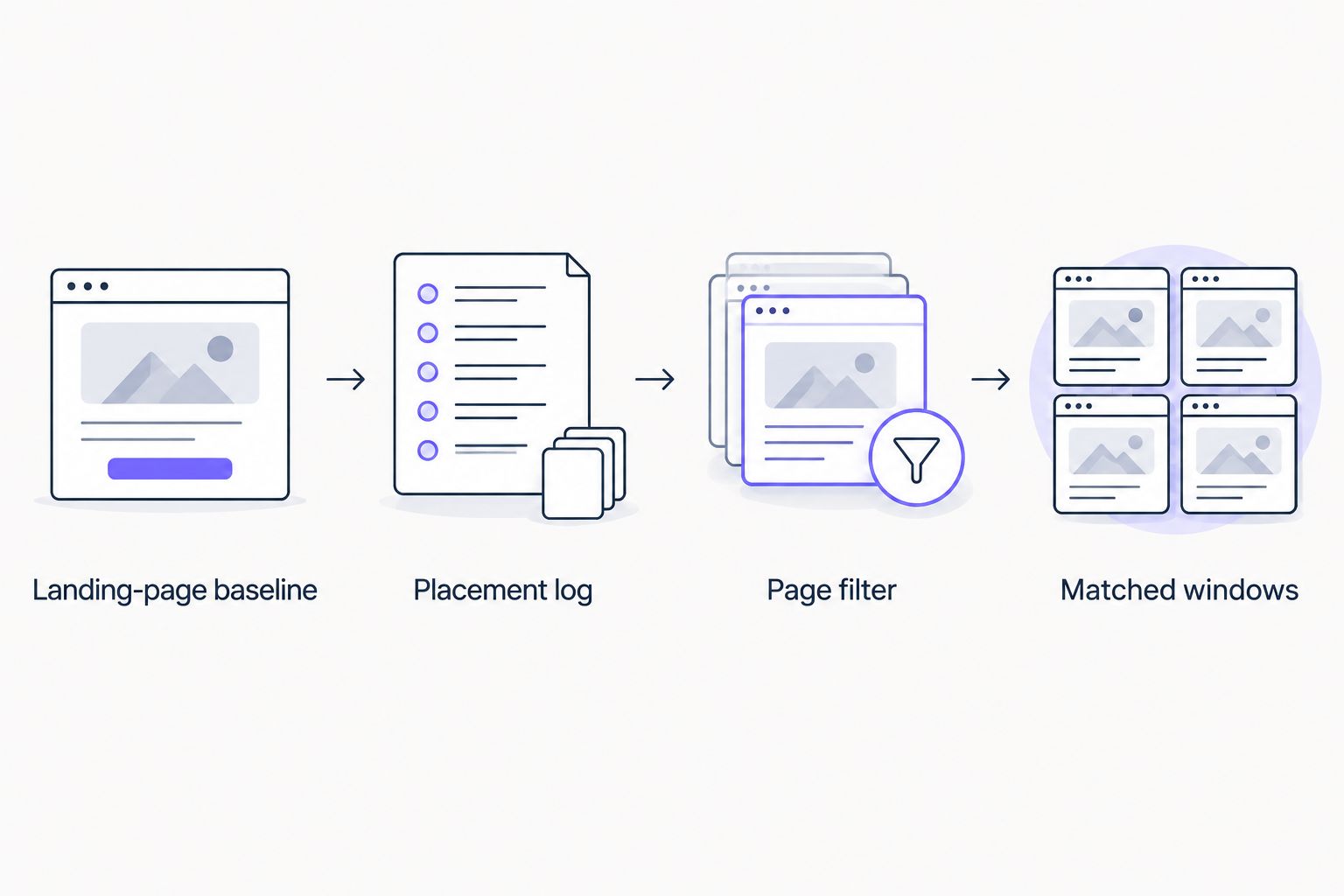
The critical sequence is Landing-page baseline, Placement log, Page filter, then Matched windows. Skip the page filter and the site’s strongest pages can hide a flat campaign landing page. Skip the log and you cannot tell whether a placement was live during the period you reported.
Compare matched windows
- Return to Date and select a post-placement period. Compare it with a pre-placement period of the same length. A 28-day window compared with another 28-day window is easier to read than periods of unequal length; exclude days before the placement was confirmed live from the post-placement window.
- Keep the same destination-page filter, search type, and metrics in both views. Record clicks and impressions alongside CTR and average position. When reviewing position, inspect the relevant queries too: a change in the page-wide average can reflect a different query mix.
- Add a note for other changes during the comparison: page edits, additional placements, technical fixes, or new content. State the observed change separately from any explanation. If the page received several links, report the page as part of a campaign rather than assigning its gains to a single edit.
Expected result: your 2026 report compares the same landing page across matched periods and names the changes that limit attribution. If the post-placement data is not yet available in Search Console, wait for the report to populate rather than fill the gap with a ranking snapshot.
| Reporting approach | What you can say | What you cannot say |
|---|---|---|
| Page-level comparison | The destination page gained or lost clicks, impressions, or query visibility between matched windows. | A specific niche edit caused the change. |
| Placement-level log | A link appeared on a recorded publisher page and pointed to the recorded destination. | That the link generated a particular number of organic clicks. |
Use both approaches. One establishes what was published; the other shows what happened to the destination page in Google Search. Neither replaces the other, and neither turns correlation into proof of causation.
Track an updated niche edit without resetting the whole campaign
A publisher can change an existing article after your link goes live. If the link stays on the same publisher URL and still points to the same destination, record the update date on the original placement row. Then check the live page again for the link and anchor text.
If the publisher changes the destination URL, treat that as a new measurement decision. Add the new destination to your log and create its own page-level baseline in Search Console. Do not splice the old landing page’s pre-update performance onto the new landing page’s post-update performance; those are different pages.
For an edit that points to the same destination, keep the original baseline and annotate the publisher update on the campaign timeline. You can compare periods around that update, but label them as an observation about the destination page. You still cannot isolate the effect of a publisher-page revision from other changes.
This variant also handles multiple niche edits to one URL. Maintain separate placement rows, then use a shared destination-page report. The log tells you which links were live in each window; the Search Console view tells you how the destination page performed while they were live.
Troubleshooting
- The destination page does not appear in the Pages tab. Confirm that you selected the correct property, then inspect the exact destination URL recorded in the placement log. Check whether the page uses a different canonical URL or has too little reported search data for the chosen period. Do not substitute a similarly named page to complete the report.
- The placement is live, but the graph does not move. Verify that the post-placement window contains reported data and that the filter targets the linked page. No immediate increase is a valid result; Search Console does not promise that a newly published backlink will produce measurable search growth.
- The report shows a sitewide rise but the landing page is flat. Reapply the destination-page filter. Sitewide clicks can grow because other pages performed better, even when the linked page did not.
- The query list changed while average position changed. Review the queries individually instead of presenting the page-wide average as a fixed-keyword ranking. Different queries contributing to the report change what that average describes.
- A publisher link is missing from Search Console’s link reporting. Check the link on the live publisher page first. Search Console’s link reports are not a complete, live placement ledger; the absence of a listed backlink does not replace a direct check of the source page.
Customize your workflow
Add campaign fields that help you make decisions: the target query theme, the page owner, notable on-page changes, and whether another placement points to the same destination. Keep these alongside the placement dates and exported performance views. When a client asks why clicks changed, those notes are more useful than a screenshot without context.
Review anchor text as a campaign choice, not as a metric Search Console attributes to a backlink. The guide to choosing anchor text when buying backlinks covers that decision separately. Search Console can show which queries brought a destination page visibility; it does not tell you that a particular anchor produced those queries.
For a 2026 agency report, lead with the landing-page outcome, then show the placement evidence and relevant query changes. Put limitations in the same report, not in a footnote: other links, content updates, and changing demand prevent a single-link claim. The next move is to keep the page filter and placement log together every time you refresh results.
Source your next placement
Explore link building and guest posting options for your campaign.
FAQ
Can I connect Google Search Console directly to a niche edit?
No. Google Search Console reports on the destination site’s search performance, not on a niche edit as a campaign item. Match the live placement to its destination URL in a separate log, then filter Search Console to that page.
Can Google Search Console show which niche edit increased traffic?
No. Search Console can show changes in a landing page’s organic clicks and impressions, but it cannot attribute those changes to an individual backlink. Record other links and page changes before interpreting the trend.
Which Search Console report should I use for niche edits?
Use Performance, then Search results, with the linked destination page selected in Pages. Review clicks, impressions, CTR, average position, and the Queries tab for the same page and date range.
Should I track the publisher URL or the landing page URL in Search Console?
Track the landing page URL in your Search Console property. Record the publisher URL in your placement log and check the live publisher page separately for the backlink.
What date should start my post-placement comparison?
Start with the date the backlink was confirmed live, not the date it was ordered. Compare equal-length periods and wait until the selected post-placement dates have data in Search Console.
Does a missing backlink in Search Console mean the niche edit failed?
No. Check the live publisher page to confirm whether the link exists and points to the intended URL. Search Console’s link reporting is not a complete placement ledger.
How do I report several niche edits pointing to one page?
Keep each placement in a separate log row and report Search Console performance for their shared destination page. Describe the result as a page-level campaign outcome, not a result assigned to one edit.
One last thing
The most useful 2026 niche-edit report can show no clear uplift. If the placement is live, the destination-page filter is correct, and matched windows show flat performance, say so. That finding tells you to review the page, its target queries, and the next placement decision instead of claiming a win the data does not show.