
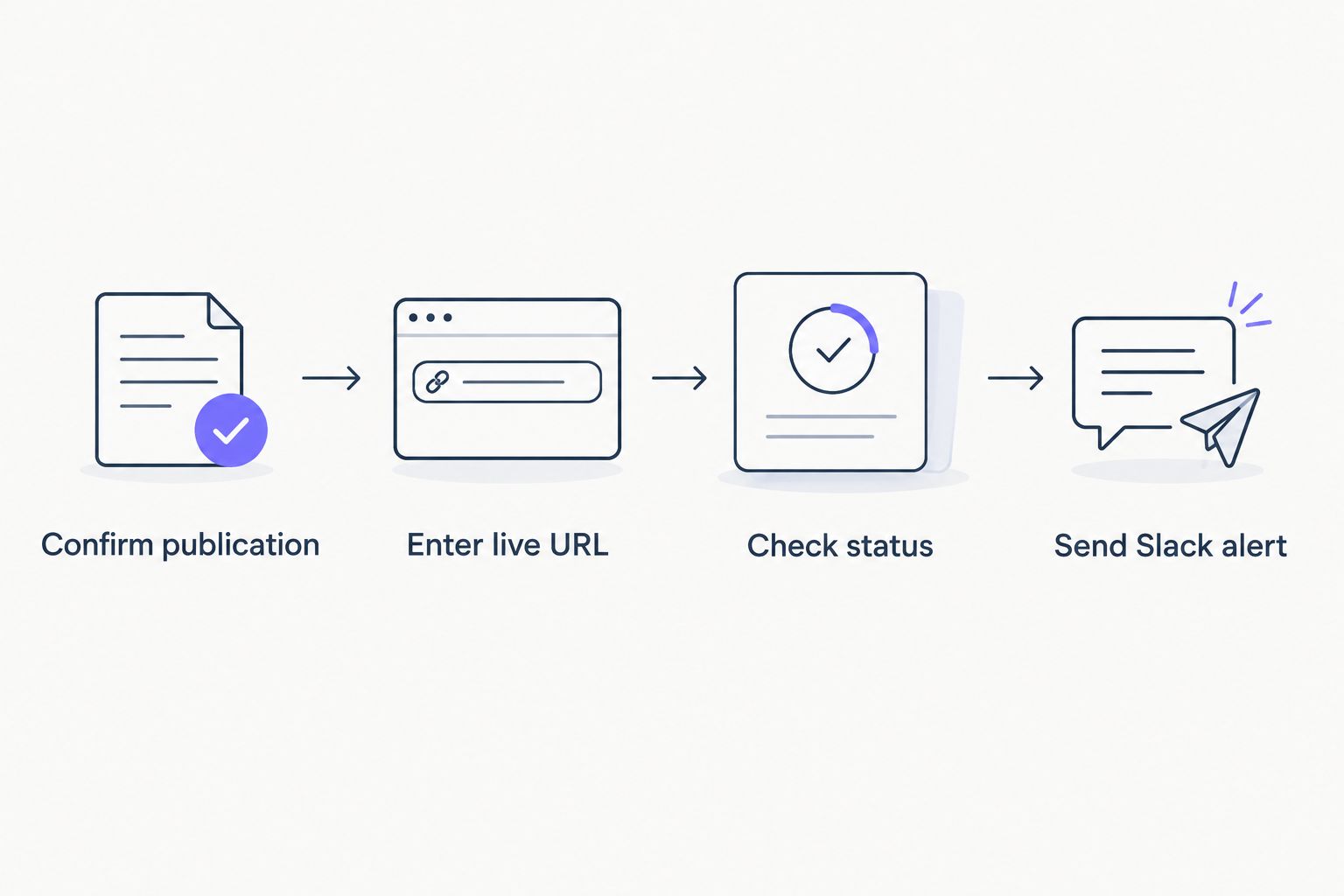
Instead of manually checking each guest post and messaging your team when it goes live, record the confirmed live URL in Google Sheets and use Zapier to send a Slack alert. Google Sheets plus Zapier is the right setup for slack guest post notifications when your team already tracks placements in a spreadsheet: the alert is automatic after the URL is entered, but publication detection is not.
- Google Sheets plus Zapier is best for slack guest post notifications when your team records confirmed live URLs in a spreadsheet.
- A live URL is the trigger; a placement marked Published without a URL is not ready for an alert.
- This workflow automates the Slack message, not the check that a publisher has actually published the post.
- NO-BS Marketplace users can track guest post placements with one spreadsheet row per placement before sending team alerts.
Why this matters
A guest post marked complete in a campaign tracker is not necessarily live on a publisher site. Your account team needs the published URL to report the placement; your SEO team needs it to check the destination, anchor text, and page. A Slack message that says only Published sends both teams back to the spreadsheet.
This 2026 workflow starts with a confirmed URL. If you buy guest posts through NO-BS Marketplace, keep the publication check separate from the alert: the marketplace connects SEO professionals and agencies with publisher sites, but the inputs here do not establish a native Slack integration or an automatic publication feed. NO-BS Marketplace is best for SEO teams sourcing guest post placements, not as a substitute for checking that an individual post is live.
Before you start
- Access: You need permission to edit the Google Sheet, create a Zap in Zapier, and post to the intended Slack channel through the Slack account connected to Zapier. Confirm the channel before building the Zap; a working trigger cannot deliver to a channel your connection cannot access.
- A placement tracker: Use 1 row per guest post. Give the sheet columns named
Campaign,Publisher,Live URL,Status, andNotified URL. These are columns you create, not fields supplied by NO-BS Marketplace. Keep their header names stable after connecting the sheet. - A publication rule: Enter a URL in
Live URLonly after you have opened the publisher page and confirmed the guest post is there. This is the gotcha: changingStatusto Published does not prove a page exists, and this setup does not watch publisher websites for you.
In 2026, choose which edit should cause the alert before connecting anything. The main workflow below watches Live URL, then checks Status. If your team fills the URL first and changes the status later, use the status-trigger variant instead. Pick one trigger pattern for a given sheet so the same placement does not generate alerts from 2 Zaps.
Prepare the placement row
The spreadsheet is the handoff between publication checks and Slack. Keep the source data small enough that an account manager can review the row without opening a separate brief.
- Add the headers
Campaign,Publisher,Live URL,Status, andNotified URLto the first row of a worksheet. Use one worksheet for the Zap you are about to connect. - Put each guest post on its own row. Use a campaign identifier your team already recognizes; do not combine multiple publisher URLs in one
Live URLcell. - Agree on the exact status value
Published. A filter that checks for Published will not treat Live or Complete as the same value. - Leave
Notified URLempty until a Slack alert has been sent and someone has checked it. That column is your visible record for audits; the basic Zap below does not write to it automatically.
Expected result: Every placement has 1 row, and each confirmed publication has 1 URL that can be copied into a Slack message. The sheet also shows which placements still need an alert check.
Set up the Google Sheets trigger
Use an edit to the live URL as the event. That keeps the 2026 notification tied to the page your team can actually open, rather than to an internal progress label.
- In Zapier, select Create and start a Zap. Choose Google Sheets as the trigger app.
- Select New or Updated Spreadsheet Row as the trigger event. Connect the Google account that can access your tracker.
- In the trigger setup, choose the correct Spreadsheet and Worksheet. If Zapier offers Trigger Column, choose
Live URLso an edit to that column starts the workflow. - Select Test trigger and inspect the sample row. Check that it contains the campaign, publisher, status, and full published URL you expect. If Zapier returns an old row without a live URL, update a test placement in the chosen worksheet and test again.
Expected result: Zapier receives the placement row, including its Live URL. Nothing has been sent to Slack yet. If your Zapier trigger setup does not offer a column-specific option, test what edits it responds to before turning the Zap on; a whole-row trigger needs stricter filtering and duplicate checks.
Configure the publication check
A populated URL alone is not enough if your team sometimes adds draft or preview links. Add a filter before the Slack action so a routine spreadsheet edit does not become a false publication announcement.
- Add Filter by Zapier after the Google Sheets trigger.
- Under Only continue if, set the
Statusvalue from the sheet to matchPublished. - Add a second condition requiring
Live URLto contain a value. If your team records preview URLs in that column, change the spreadsheet process: keep preview links elsewhere and reserveLive URLfor confirmed publisher pages. - Test the filter with a row marked Published that contains a confirmed URL. Then test a draft row and a Published row with an empty URL. Only the confirmed row should continue.
Expected result: The Slack step receives rows that meet both checks. The filter tests spreadsheet values; it does not visit the publisher page or verify that the backlink appears in the article. A person must make that call before entering the URL.
A filtered 2026 alert is more useful than a faster alert with a bad link. If your team needs a stricter approval gate, add a separate column for a reviewer’s confirmation and include it in the filter. Define its accepted value in the sheet before changing the Zap.
Configure the Slack message
The Slack alert should identify the placement without forcing a teammate to hunt through the tracker. Send the published page URL, not just a link to the spreadsheet.
- Add Slack as the action app and select Send Channel Message. Connect the Slack account that can post to the chosen channel.
- Select the destination in Channel. Use the campaign channel if the people checking guest posts work there; otherwise use the team’s placement-review channel.
- In Message Text, insert the
Campaign,Publisher, andLive URLvalues from the Google Sheets trigger. A useful format is:Guest post live | Campaign: [Campaign] | Publisher: [Publisher] | URL: [Live URL]. Replace each bracketed example with the corresponding Zapier field token; do not leave the brackets as literal text. - Test the Slack action. Open the link in the test message, then check that the campaign and publisher match the spreadsheet row. Turn the Zap on only after the message lands in the intended channel.
Expected result: Entering a confirmed Live URL for a row marked Published sends a channel message with the published page. The Slack notification is the handoff; it is not proof that the anchor text, target page, or link attribute matches the campaign brief.
After a successful alert, copy the sent URL into Notified URL or mark the row reviewed using your existing tracker process. Do not treat that manual column as an automatic safeguard: the Zap described above does not read it or stop repeated edits to Live URL from triggering again. If duplicate prevention is essential, add a separate deduplication step that compares the last alerted URL with the current URL before sending, and test it with repeated edits.
Notify Slack when the status changes instead
Some teams enter the published URL while a placement still awaits review, then change Status to Published once the page passes checks. For that order of operations, watching Live URL misses the final approval edit. Use a status-triggered version of the Zap instead of the live-URL-triggered version.
- Keep the same Google Sheets trigger event, New or Updated Spreadsheet Row, and the same Spreadsheet and Worksheet.
- If Trigger Column is available, choose
Status. Set the status to Published only after checking the publisher page. - Keep both filter conditions:
StatusmatchesPublished, andLive URLcontains a value. Reuse the Slack message format so the channel receives the actual published URL. - Test by changing a test row’s status after its URL is present. Check the Slack message, then test a status edit on a row without a URL; that row must stop at the filter.
Expected result: The approval change sends the notification. This 2026 variant is better when publication checks happen after the URL enters the tracker. It has a trade-off: changing a row away from Published and back can send another alert. Keep one owner for status changes, or add tested deduplication before using the Zap at scale.
| Workflow | Best for | Advantage | Limitation |
|---|---|---|---|
Watch Live URL |
Teams that confirm publication before entering the URL | The alert includes a page teammates can open | A later status change alone does not trigger it |
Watch Status |
Teams that add the URL before final review | Approval becomes the handoff to Slack | Repeated status changes can repeat the alert |
Troubleshooting
No Slack message arrives after a URL is entered. Check whether the Zap is on, whether the edited row is in the selected worksheet, and whether Status exactly matches Published. If the trigger watches Status, editing only Live URL will not start that variant.
Zapier sends a message with blank campaign details. Open the Google Sheets trigger test and confirm it pulled a row with populated cells under the expected headers. If someone renamed a column after setup, remap the fields in Message Text and test again.
The alert links to a draft or inaccessible page. The spreadsheet entry is wrong, not the Slack action. Open the publisher URL without relying on an editor’s preview session, confirm the article is public, and correct the row before notifying the client.
The same guest post appears in Slack again. A watched cell can be edited more than once. Check which column triggered the Zap and whether someone re-entered the URL or changed the status again. A filter for Published does not, by itself, prevent repeat alerts.
The test works but the team cannot see the channel message. Check the Channel selected in the Slack action and the connected account’s access to it. Run a fresh action test after correcting the destination; do not assume a successful trigger test also proves Slack delivery.
Customize your workflow
Once slack guest post notifications reach the right channel, make the message useful for the next decision. Add a campaign owner to the sheet if your team needs a named reviewer. Add a client identifier if one channel covers several accounts. Map only fields your team maintains consistently; a message full of empty labels is harder to act on than the published URL alone.
For 2026 reporting, separate three events in your tracker: the publisher page went live, the team checked the placement, and the link produced referral visits. A Slack alert confirms the first handoff only. Use the guide to tracking guest post referral traffic when you need to assess visits rather than publication status.
NO-BS Marketplace supports guest posting and link building for agencies and SEO professionals. This spreadsheet workflow does not require a claimed NO-BS Marketplace integration: your team controls what counts as a confirmed placement, and Slack distributes that confirmation. The upside is a clear, reviewable handoff. The cost is that someone still has to check the publisher page.
FAQ
How do I set up slack guest post notifications in 2026?
Use a Google Sheets placement row as a Zapier trigger, filter for a confirmed live URL and Published status, then send the row details to a Slack channel. A person must confirm the publisher page before entering the live URL.
Can Slack detect when a guest post goes live by itself?
No. The workflow in this guide sends a Slack alert when your placement tracker changes; it does not monitor publisher pages or independently confirm publication.
Should I trigger the alert from the live URL or the status?
Trigger from Live URL if your team marks the row Published before entering the confirmed page link. Trigger from Status if your team enters the URL first and uses Published as its final approval.
Why did my guest post notification send twice?
The watched spreadsheet cell was likely edited again or more than one Zap watched the placement. Check the trigger history and use one trigger pattern per sheet; add tested deduplication if repeated edits are routine.
What should the Slack notification include?
Include the campaign, publisher, and confirmed live URL. Those fields let the recipient open the placement and identify the account without searching the tracker.
Does a Published status prove the backlink is live?
No. Published is a value in your tracker, not a check of the publisher page. Open the live URL and review the page and link before treating the placement as confirmed.
Does NO-BS Marketplace have a native Slack notification integration?
A native integration is not established by the information provided here. This 2026 guide uses a Google Sheets tracker and Zapier to send Slack alerts without claiming a direct NO-BS Marketplace connection.
One last thing
Do not make Slack the source of truth. In 2026, keep the confirmed publisher URL and review status in the placement row. The Slack message tells the team where to look; the row preserves what was checked when someone asks about a guest post later.